With the recent integration of the Safe Exam Browser (SEB) into the Sarathi Parivahan portal, the online Learning License (LL) test has become highly secure. One of the most stringent new features is the AI-driven facial recognition system, designed to verify that a real, live human—specifically the applicant—is sitting for the exam.
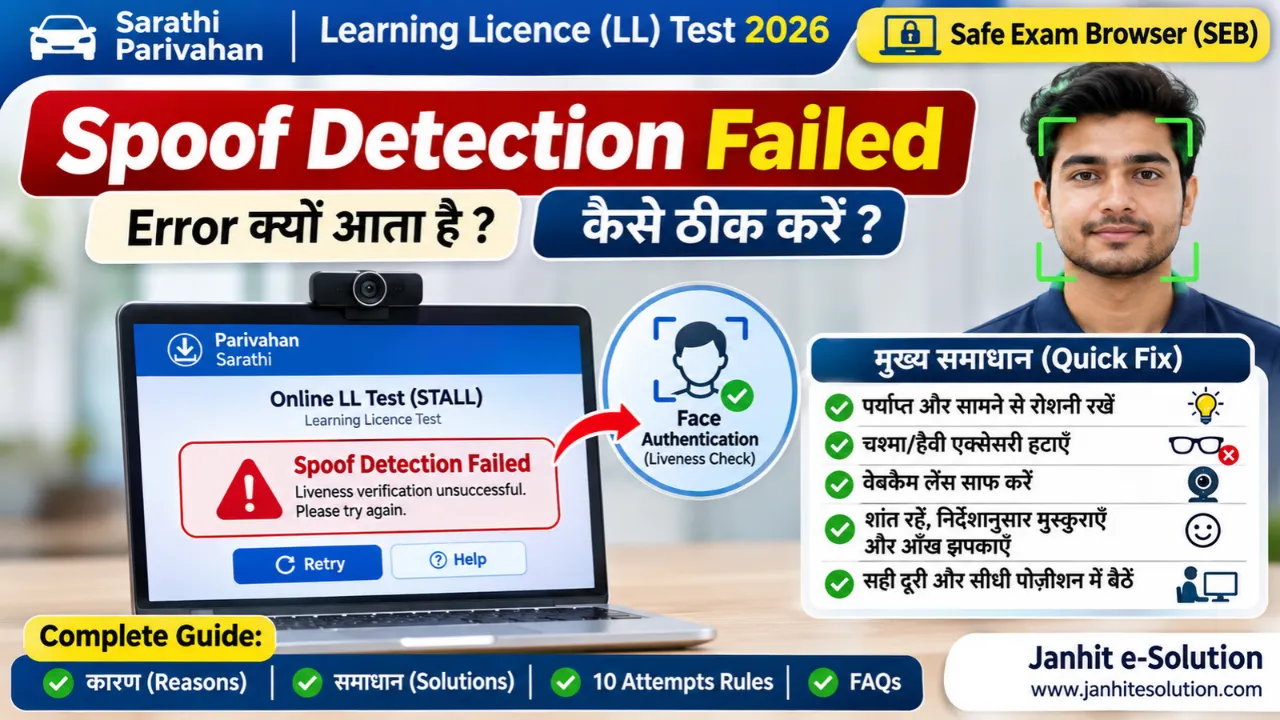
However, thousands of applicants across India are currently getting stuck at the login screen with a frustrating error message: “Spoof Detection Failed” or “Liveness Detection Failed.”
If you are a CSC VLE trying to help a customer, or an applicant taking the test from home, this comprehensive troubleshooting guide explains exactly why the Parivahan AI is rejecting your camera feed and the precise steps you need to take to pass the authentication phase.
Table of Contents
Quick Info: Parivahan Liveness Check – Spoof Detection Failed
| Feature | Details |
| Error Message | Spoof Detection Failed / Face Verification Failed |
| System Trigger | Safe Exam Browser (SEB) AI Monitoring |
| Purpose of Check | To prove a live human is present (not a photo or video recording) |
| Key Actions Required | Smiling and Blinking into the webcam |
| Maximum Attempts | 10 Attempts |
| Fallback Option | Manual Photo Upload / RTO Verification |
Understanding “Spoof Detection Failed”
When the Parivahan portal displays a “Spoof Detection Failed” error, it does not mean the system thinks you are a criminal. It simply means the Artificial Intelligence (AI) software cannot mathematically prove that the object in front of the camera is a live, moving 3D human face.
In cybersecurity, “spoofing” refers to tricking a system using a fake identity—like holding up a printed photograph or a video playback to the webcam. The SEB software uses liveness detection (tracking your eye blinks and facial muscle movements when you smile) to ensure you are physically present. When environmental factors interfere with the camera’s ability to see these micro-movements, the spoof detection fails.
Top 5 Reasons Your Face Authentication is Failing
The AI is not judging your appearance; it is analyzing data points. Nearly all authentication failures are caused by your physical environment or hardware setup.
1. Severe Backlighting (The #1 Cause)
If you sit with your back to a bright window, an open door, or a strong tube light, your webcam will adjust to the bright background. This turns your face into a dark silhouette or shadow. The AI cannot map facial features on a shadow, leading to an immediate spoofing error.
2. Wearing Spectacles or Heavy Accessories
Glasses cause a major issue for liveness checks. The lenses create glare and reflections from your monitor screen, hiding your eyes. Thick frames can also block your eyebrows, preventing the AI from verifying your eye blinks. Caps, masks, and thick scarves covering the chin also distort facial geometry.
3. Blinking or Moving Too Fast
When the system asks you to “Smile” or “Blink,” many applicants move nervously or rapidly. Moving too fast causes motion blur on standard webcams. If the camera captures a blurry frame, the AI immediately rejects it as unnatural or “spoofed.”
4. Dirty Webcam Lens or “Beauty Filters”
If you are using a laptop or a smartphone as a webcam, the lens is often covered in fingerprint smudges, causing a soft, hazy image. Additionally, some modern devices have built-in “skin smoothing” or beauty filters. The Parivahan AI detects these artificial filters as tampering and will throw a spoof error.
5. Sitting Too Close or Looking Down
Sitting too close to the camera distorts the proportions of your nose and forehead (the “fisheye” effect). Sitting with the camera placed lower than your chin forces you to look down, hiding your eyes beneath your brow bone.
Step-by-Step Solutions Spoof Detection Failed: How to Pass the Liveness Check
Follow these exact steps before attempting your next authentication. Remember, rapid identical retries will just produce identical failures. Change your setup before your next attempt.
1.Fix Your Lighting:
Turn your setup around so you are facing the light source. Ensure the window or lamp is illuminating your face from the front or slightly from the side. Your face must be the brightest object in the camera frame.
2.Clean the Lens and Disable Filters:
Take a microfiber cloth and wipe your webcam lens clean. If you are using third-party software (like DroidCam) to use your phone as a webcam, ensure all built-in beauty filters or portrait modes are turned off in your phone’s camera settings.
3.Remove All Headwear and Glasses:
Remove your spectacles (even if they are transparent), sunglasses, caps, and large headphones. Ensure your hair is pulled back so it is not covering your eyebrows or cheeks.
4.Position the Camera at Eye Level:
Keep the webcam exactly at eye level. Do not look down at a laptop screen on your lap. Place the laptop on a table and sit an arm’s length away so your head and shoulders are clearly visible in the center of the frame.
5.Move Slowly and Naturally:
When the software prompts you to start the live check, stare directly into the camera lens (not at your screen). When asked to blink, close your eyes fully and open them at a normal, natural pace. When asked to smile, smile naturally and hold still. Do not shake your head.
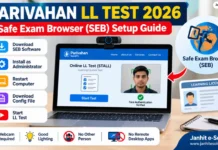
Before appearing for the Learning Licence test, applicants should understand the new examination requirements. Follow this detailed Parivahan LL Test SEB Setup Complete Guide to learn about software installation, system configuration, face authentication, and common troubleshooting steps.
What Happens If You Fail 10 Times?
The Sarathi Parivahan system grants every applicant a maximum of 10 attempts to pass the liveness check.
If you exhaust all 10 attempts:
- Don’t Panic: Your application is not permanently rejected or canceled.
- Manual Upload Trigger: The SEB portal will usually lock the live authentication feature and prompt you to manually upload a fresh, clear photograph of your face.
- RTO Verification: If the manual upload option does not appear or fails, the system will display a message stating: “This application has crossed maximum no (10 times) of face authentication attempts. Kindly contact RTO authority.” In this scenario, you must visit your local RTO in person to verify your identity and have your test unlocked manually by an official.
Tip for CSC VLE: To avoid exhausting attempts, if a candidate fails 3 times in a row, stop the process. Move them to a different chair with better lighting before trying again.
Important Direct Links
| Resource Name | Direct Link |
| Official Sarathi Parivahan Portal | Click Here to Visit |
| Check LL Application Status | Click Here to Track Status |
| Janhit e-Solution Homepage | Visit janhitesolution.com |
❓ Frequently Asked Questions (FAQs)
Does “Spoof Detection Failed” mean my application is rejected?
No. It only means the AI could not verify your live face during that specific attempt. Your application remains active, and you can try again up to 10 times.
Can I pass the face authentication while wearing glasses?
It is highly recommended to remove your glasses. Glare on the lenses frequently blocks the AI from detecting your eye blinks, which triggers the spoofing error.
Why is my face authentication failing at night?
At night, room lighting is often uneven or behind you, creating shadows. If you must take the test at night, ensure a bright light is placed directly behind your monitor, shining onto your face, and let the white glow of your computer screen help illuminate your features.
I reached the 10-attempt limit. Can I reset it?
No, you cannot reset the counter yourself. You must either follow the on-screen prompt to re-upload a photograph or visit your local RTO to have the block manually cleared by the transport authorities.
Why does the system ask me to smile and blink?
Smiling and blinking are required to prove “liveness.” A printed photograph or a 3D mask cannot blink or smile, so this prevents fraudsters from impersonating you during the exam.