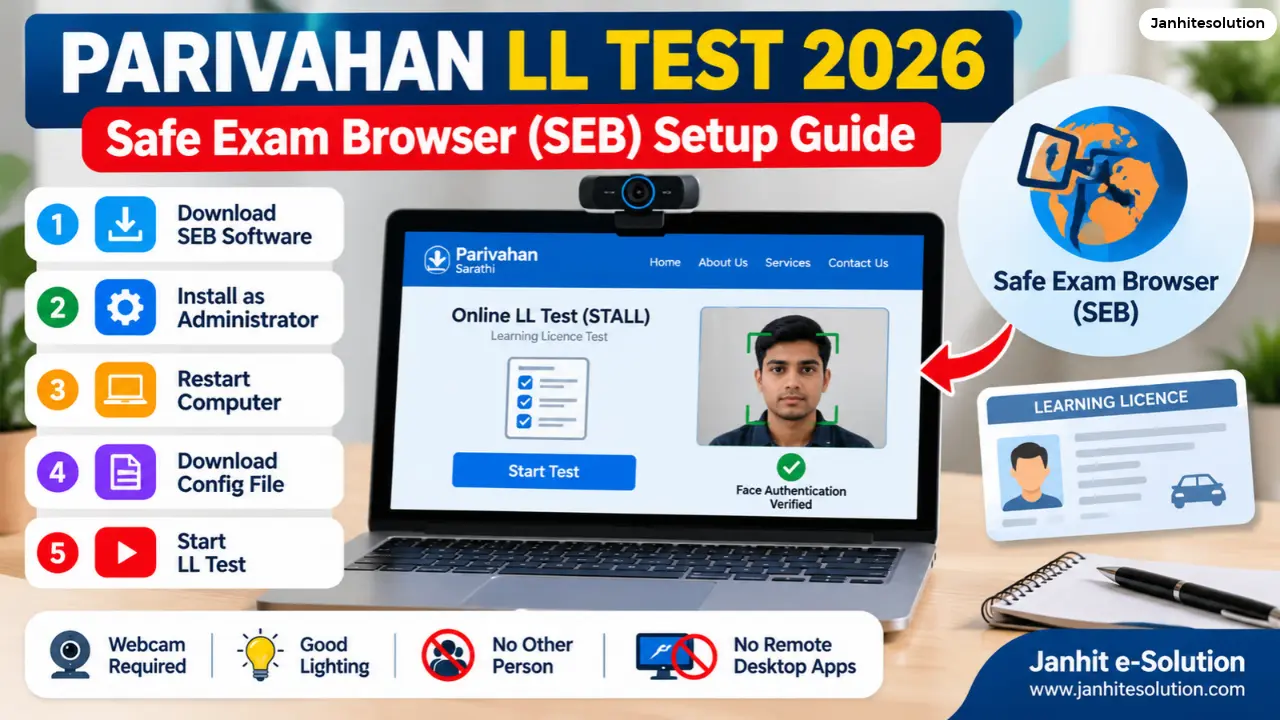
The Ministry of Road Transport and Highways (MoRTH) has completely transformed the online Learning License (LL) testing process on the Sarathi Parivahan portal. Previously, applicants could simply log in with their application ID and take the test in a standard browser like Google Chrome.
To curb malpractices, screen-sharing, and proxy testing, the government has mandated the use of a Safe Exam Browser (SEB). This specialized software locks down the candidate’s computer, blocks background applications, and uses advanced AI-driven live facial recognition to monitor the exam continuously.
Whether you are a citizen applying from home or an authorized CSC VLE / MPOnline Kiosk operator assisting applicants, this fully loaded guide breaks down every exact step, critical installation rules, and troubleshooting fixes you need to successfully conduct the Parivahan LL Test.
Table of Contents
Quick Info: New Parivahan LL Test System
| Feature | Official Details |
| Portal Name | Sarathi Parivahan |
| Administering Authority | Ministry of Road Transport & Highways (MoRTH) |
| Mandatory Software | Safe Exam Browser (SEB) |
| File Sizes | Base Setup (~300 MB) + Small OS Configuration File |
| Execution Rule | “Run as Administrator” (Strictly Required for Installation) |
| Hardware Requirement | Active Web Camera (External or Laptop built-in) |
| Authentication Type | AI Live Facial Recognition (Liveness Check) |
| Max Authentication Attempts | 10 Attempts |
| Official Portal URL | sarathi.parivahan.gov.in |
System Prerequisites & Workspace Rules
Before downloading the software or initiating the test, your computer and physical environment must meet strict criteria. The Safe Exam Browser will not run if these are ignored.
1. Hardware & Software Readiness
- Operating System: You must be using a Windows or macOS computer. Mobile phones cannot run the SEB environment. Windows 10 or 11 is highly recommended for stability.
- Webcam: A fully functional webcam is strictly mandatory for the new AI monitoring. Desktop PCs require an external webcam; laptop built-in webcams are fully supported.
- No Remote Desktop Apps: Programs like AnyDesk, TeamViewer, or other screen-sharing applications must be completely closed. If they are running in the background, the SEB will block the test from launching.
2. Physical Environment (Crucial for AI Detection)
- Lighting: The room must be brightly lit. The light source should be in front of your face.
- Background: Sit against a plain, uncluttered background.
- Isolation: The candidate must be completely alone. If the camera detects a second person’s face in the frame, the exam will automatically cancel.
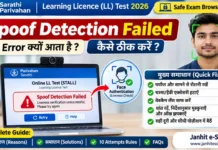
If you encounter a face verification or security-related error during the online Learning Licence test, check this guide on how to fix the Parivahan LL Test Spoof Detection Failed error for possible causes and troubleshooting solutions.
Step-by-Step SEB Installation & Configuration Workflow
Many VLE face system errors because they attempt to open the exam file directly in Chrome or skip administrative privileges during installation. Follow this exact sequence.
1.Download the Base Safe Exam Browser (SEB):
Visit the official Sarathi Parivahan website, select your state, and click on the Online LL Test (STALL) link. You will see a prompt displaying options for Windows and Mac. Click on the link that matches your computer to download the base SEB setup software (a file of approximately 300 MB).
2.Install the SEB Software as Administrator:Crucial: Do not double-click.
Locate the downloaded 300 MB setup file in your Downloads folder. Do not double-click it. Instead, Right-click on the file and select “Run as administrator”. Check “I Agree” to accept the terms and conditions, then click Install. Wait for the progress bar to complete.
3.Restart Your Computer:Mandatory Step.
Once the software installation finishes, a prompt will appear asking you to restart your system. You must restart your computer. Skipping this prevents the registry files from updating, which will cause launch errors later.
4.Download the Test Configuration File:
After restarting, open your normal browser and return to the Sarathi Parivahan Online Parivahan LL Test page. Below the first software link, click the second download link for your operating system to download the small exam configuration file (often named Online Test).
5.Launch the Secure Test Environment:Warning: Do not open with Chrome.
Locate the small configuration file in your Downloads folder. Do not right-click and choose “Open with Chrome.” Simply Right-click the file and select “Open”.
Note: A pop-up window may appear asking for a Yes/No confirmation to load local settings. You must click NO. A second prompt may appear; click NO again to connect directly to the live server.
6.Enter Login Credentials:
The Safe Exam Browser will launch in full-screen mode, locking down your computer. Enter the candidate’s Application Number, Password, and Date of Birth to initiate the face authentication phase.
How to Pass the Live Face Authentication (Liveness Check)
The most significant security upgrade is the AI-driven liveness check. The applicant whose photo is on the application must be the exact person facing the camera.
- Camera Activation: Upon logging in, the webcam activates, displaying the live feed with a “Start Live Check” button.
- Posture & Glasses: Sit straight so your face is clearly visible. If you wear spectacles or sunglasses, you must remove them during this phase to allow the AI to map your eyes.
- Blink and Smile Detection: To prove you are a live human, you must look at the camera, smile, and blink your eyes 2 to 3 times.
- 10-Attempt Limit: The portal grants a maximum of 10 attempts to pass this facial authentication.
- Fallback Option: If the system fails to authenticate the applicant after 10 attempts, the portal provides a manual fallback option requiring the upload of a fresh, clear photograph for verification.
Troubleshooting Common VLE Errors
If your system keeps looping back to the download page or showing errors, check these common mistakes:
- “Key Set Does Not Exist” / Software Crashing: This happens if you double-clicked the 300 MB setup file instead of right-clicking and choosing “Run as administrator.” Uninstall the SEB software and reinstall it correctly using admin rights.
- The Config File Opens in Chrome Instead of the Exam App: The biggest mistake VLEs make is forcing the small configuration file to open in Google Chrome. It must be opened natively (Right-click -> Open) so Windows routes it through the Safe Exam Browser.
- Test Closes Immediately Upon Launch: The SEB detects remote desktop software. You must fully exit programs like AnyDesk or TeamViewer from your system tray (near the clock) before launching the configuration file.
Important Links – Parivahan LL Test
Use the official links provided below to access the Sarathi Parivahan portal, download the Safe Exam Browser (SEB), and manage your Learning License application securely.
| Resource Name | Direct Link |
| Official Sarathi Parivahan Portal | Click Here to Visit |
| Direct Link for Online LL Test (SEB Download) | Click Here to Download SEB (Select State -> Learner License -> Online LL Test) |
| Check LL Application Status | Click Here to Track Status |
| Ministry of Road Transport & Highways (MoRTH) | Visit MoRTH Portal |
| Janhit e-Solution Homepage | Visit janhitesolution.com |
| CSC VLE Digital Seva Portal | Login to Digital Seva |
Note for VLEs & Applicants: Always ensure you are downloading the Safe Exam Browser (SEB) directly from the official sarathi.parivahan.gov.in domain. Do not download SEB setup files from third-party websites to avoid malware or exam disqualification.
Frequently Asked Questions (FAQs)
Can I still use Google Chrome to conduct the Parivahan LL Test in 2026?
No. The Sarathi Parivahan portal has permanently disabled direct browser testing. You must download, install, and use the Safe Exam Browser (SEB) to access the test interface.
What happens if I accidentally press the Windows key or Alt+Tab during the exam?
The Safe Exam Browser automatically disables all standard keyboard shortcuts. Pressing them will have no effect. You cannot minimize or exit the secure exam screen until the test is submitted or you click the dedicated SEB “Exit” button.
Does the new SEB system require a webcam for the LL test?
Yes. The new monitoring rules require live facial authentication. A functioning webcam (external or built-in) must be connected to your PC, and it will remain active for the duration of the test.
Can a CSC VLE or family member sit next to me during the test?
No. The AI strictly monitors the camera frame. If it detects a second person’s face, the examination will be immediately terminated for malpractice.
What should I do if my face authentication fails 10 times?
If you fail the liveness check 10 times, your application is not canceled. The portal will prompt you to manually upload a clear photograph for alternative verification before allowing you to start the exam.